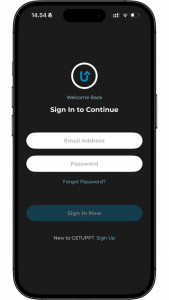
When you open the GetUpp app, you will see this screen:
Here, press on: “New to GETUPP? Sign up”
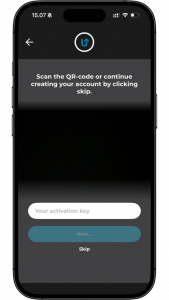
You can now choose to either: Scan the QR code provided by your workplace, enter the activation key manually or tap “Skip” to continue without a QR code. Here we choose the last one.
If you have been given a QR code or there is one on your equipment, you can find a guide for it right here: Create login with QR code HERE.
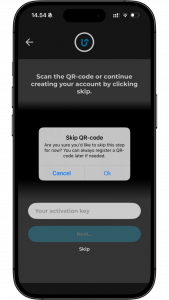
If you tap Skip, this pop-up will appear.
Select OK to continue.
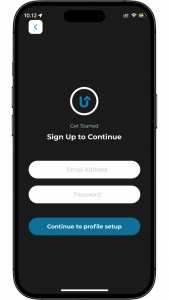
You’ll now arrive at the Sign Up screen. Here you’ll need to enter your:
E-mail
Desired password
Then tap “Continue to profile setup”.
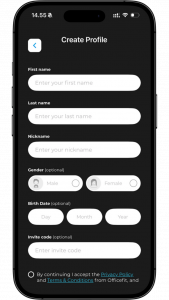
On the next screen, you’ll have to enter your details:
First name
Last name
Nickname
Gender (optional)
Date of birth (optional)
Invite code (optional)
And then check the box: “I accept the Privacy Policy and Terms & Conditions…”.
You can read more about how we store your information HERE.
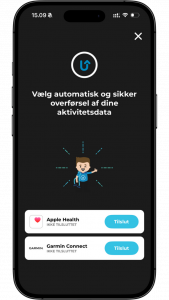
You now have the option to connect:
Apple Health
Garmin Connect
Tap connect if you want to link your activity data automatically. Otherwise, simply close the X in the top right corner.
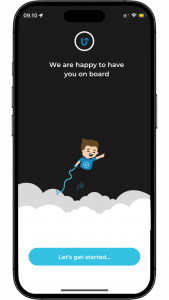
You have now successfully created your account and have access to the app’s features and content.